Ranchy Help
A practical guide for owners, workers, and veterinarians
Ranchy is a mobile app for managing your herd on your phone, with or without signal. This guide explains how to use the main features (version 1.8). Choose the language with the selector above; the app interface is also available in Spanish, English, French, Italian, and Portuguese.
Introduction
Ranchy is built for fieldwork: few taps, clear data, and offline use. Changes are saved on the phone and sync when there is a connection.
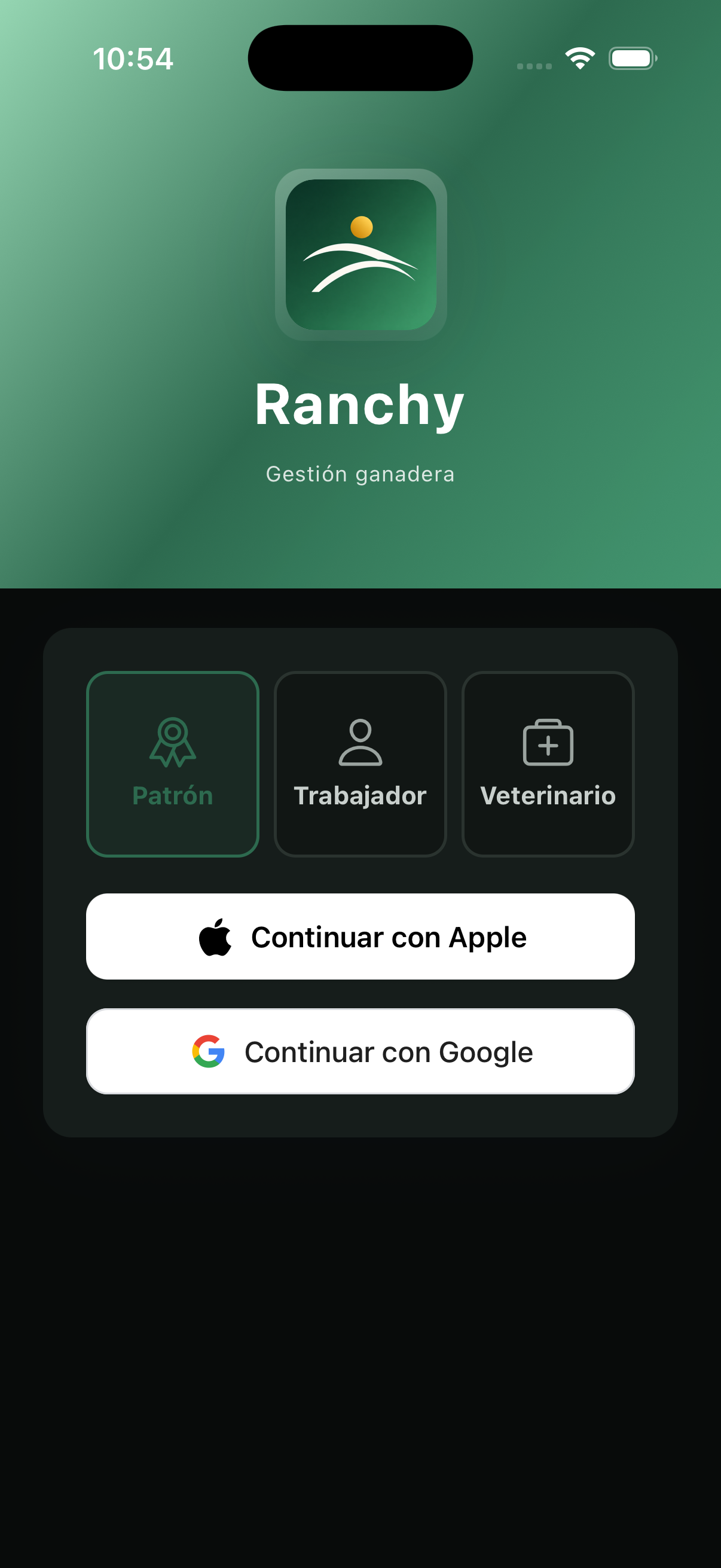
There are three ways to sign in (tabs on the login screen):
- Owner — ranch owner or administrator. Creates farms, invites the team, and manages finances.
- Worker — invited by the owner. Registers animals, events, and inventories according to the permissions they are given.
- Veterinarian — read-only access to animals the owner marks as visible.
1. Getting started
Download Ranchy from the App Store or Google Play. When you open it, choose your role and sign in with Google, Apple, or Facebook. The worker or veterinarian email must match the one the owner used when inviting them.
- Sign in as Owner (first time) or with the role you were assigned.
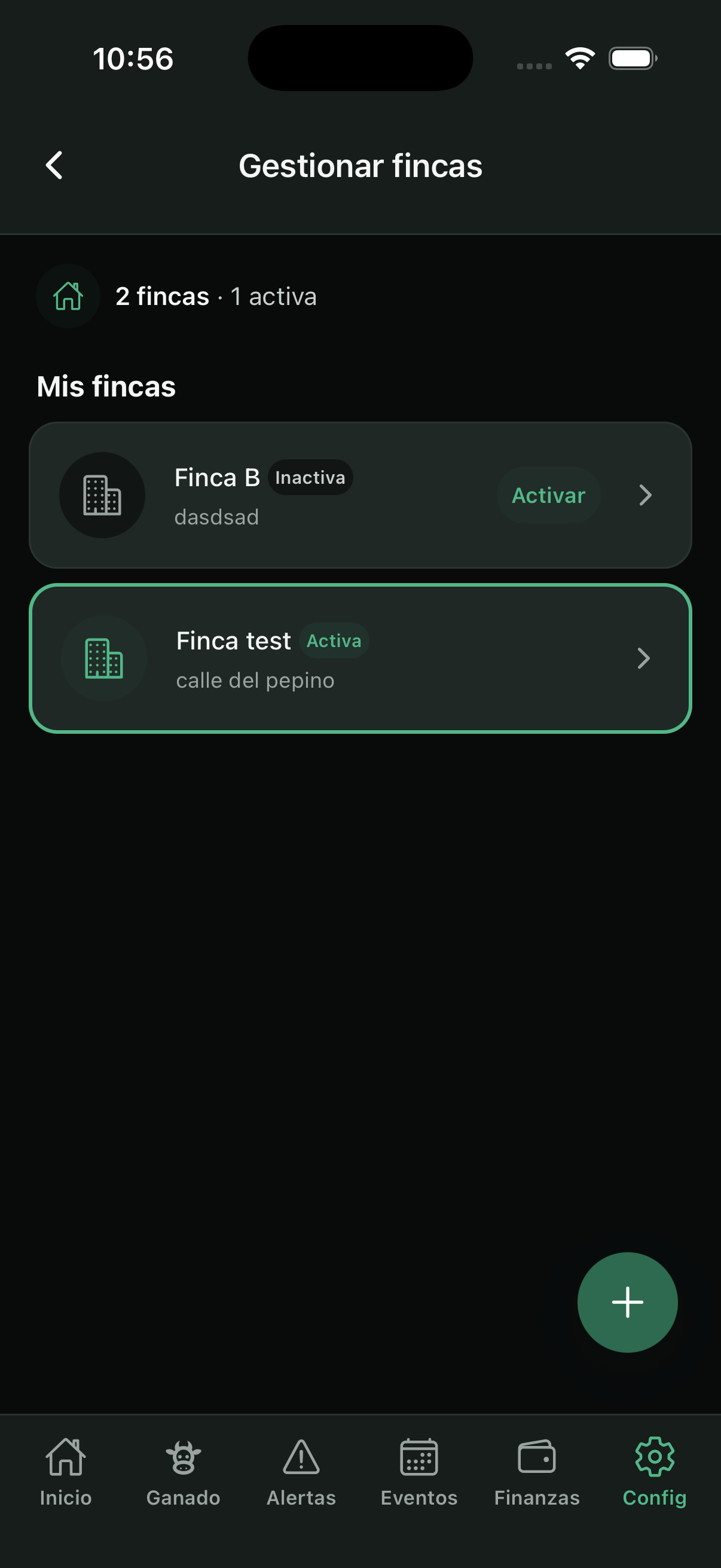
- Create your first farm in Settings → Manage farms (name and basic details).
- Check the active farm in the header: everything you see (livestock, alerts, finances) belongs to that farm.
- Go to Livestock and tap + to register the first animal.
- Explore the bottom tabs: Home, Livestock, Alerts, Events, Finances (if you have access), and Settings.
2. Home
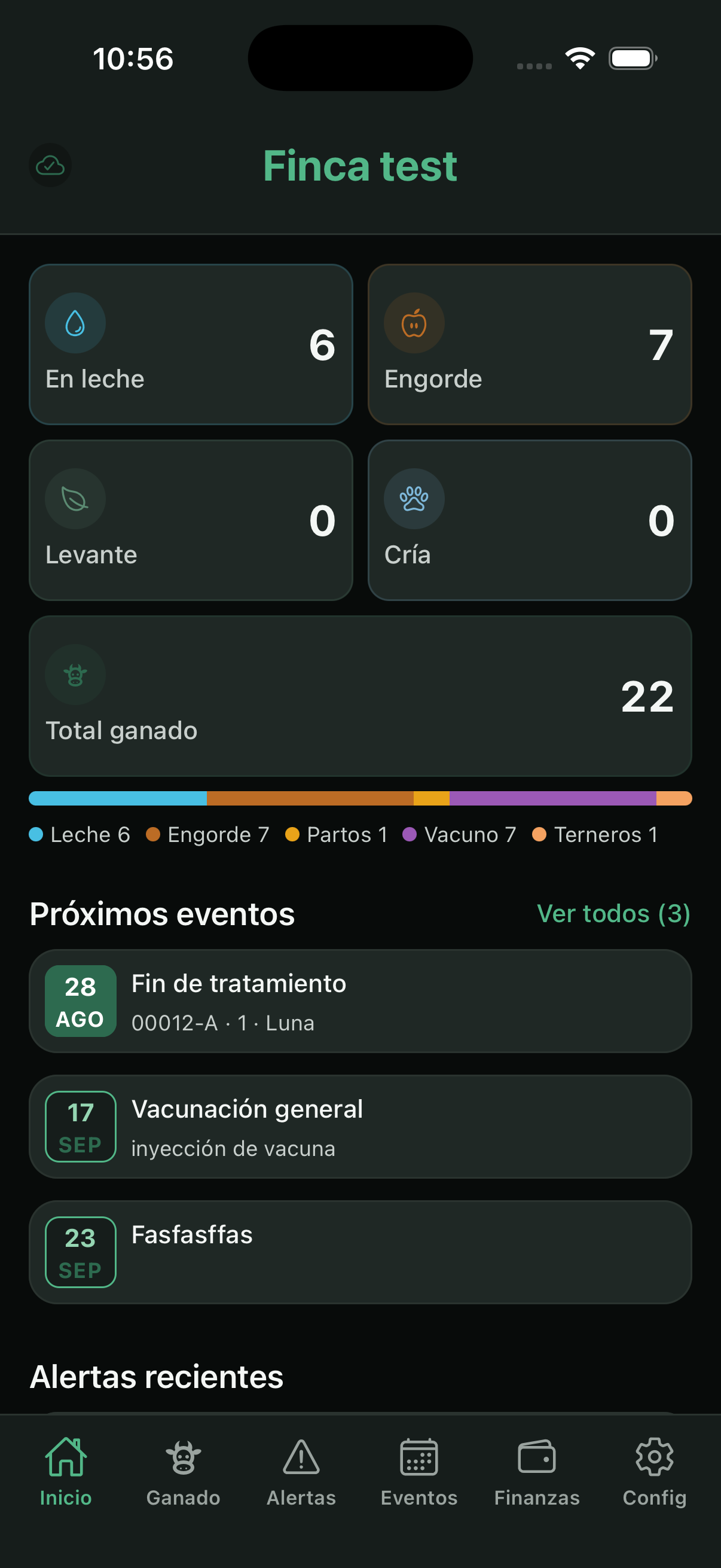
The dashboard shows herd status at a glance. Each total (Cattle, In milk, Calves, etc.) can be tapped to open the filtered list.
Below you will find shortcuts (new animal, inventory, event, alerts), a summary of upcoming farm events, and recent alerts. What is shown can be changed in Settings → Customize → Home screen.
3. Livestock: list and animal record
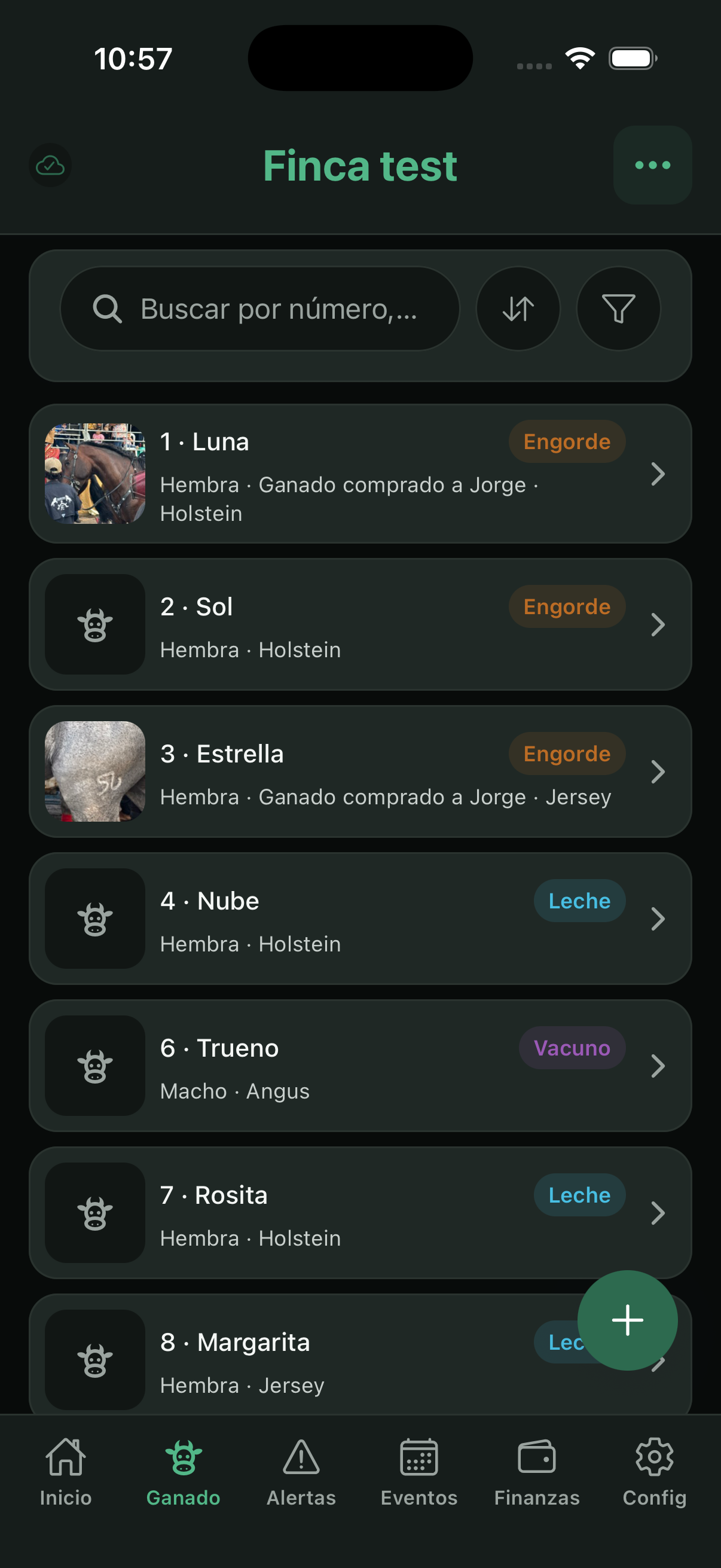
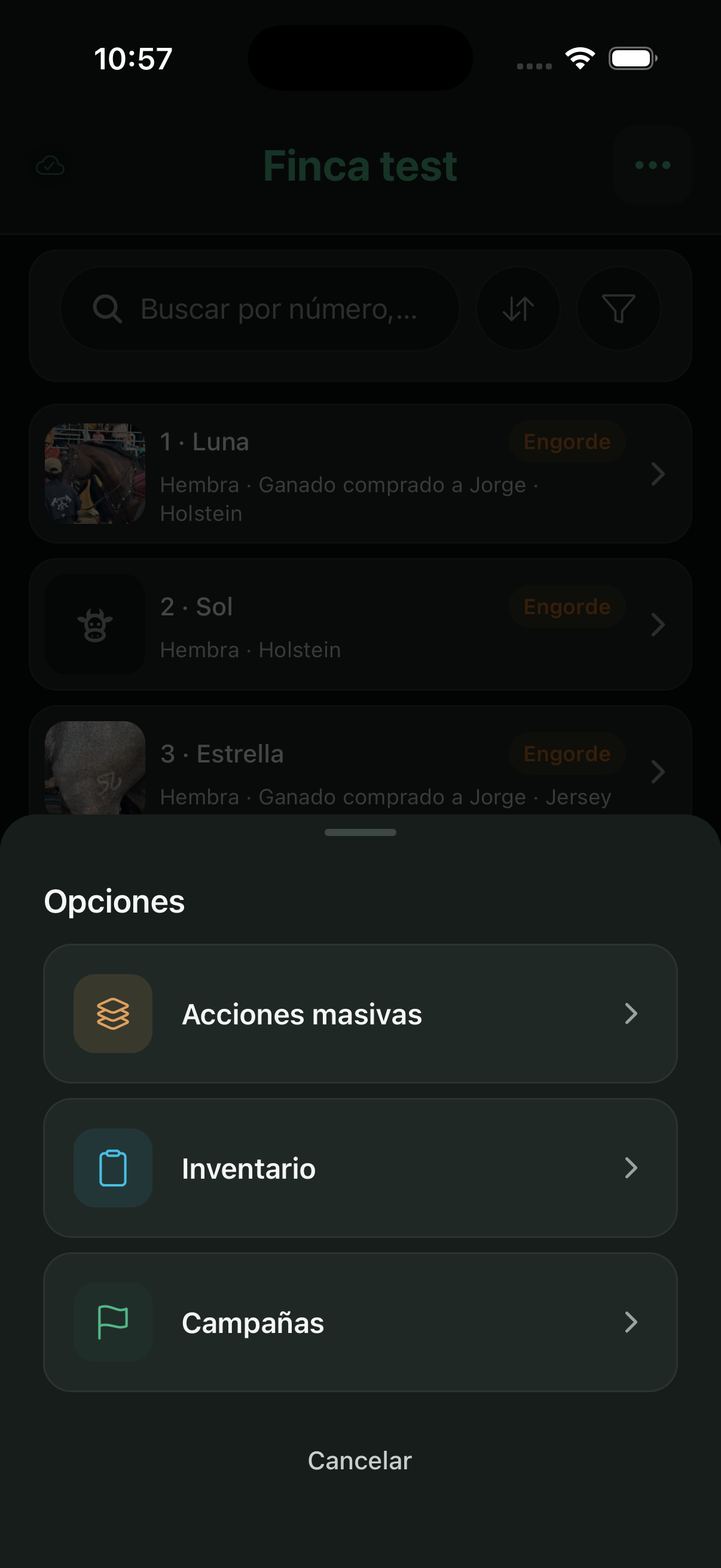
In Livestock you see all animals on the active farm. Use search, the Sort button, and filters (status, sex, pasture, lot, etc.). The ⋯ menu opens Bulk actions, Inventory, and Campaigns.
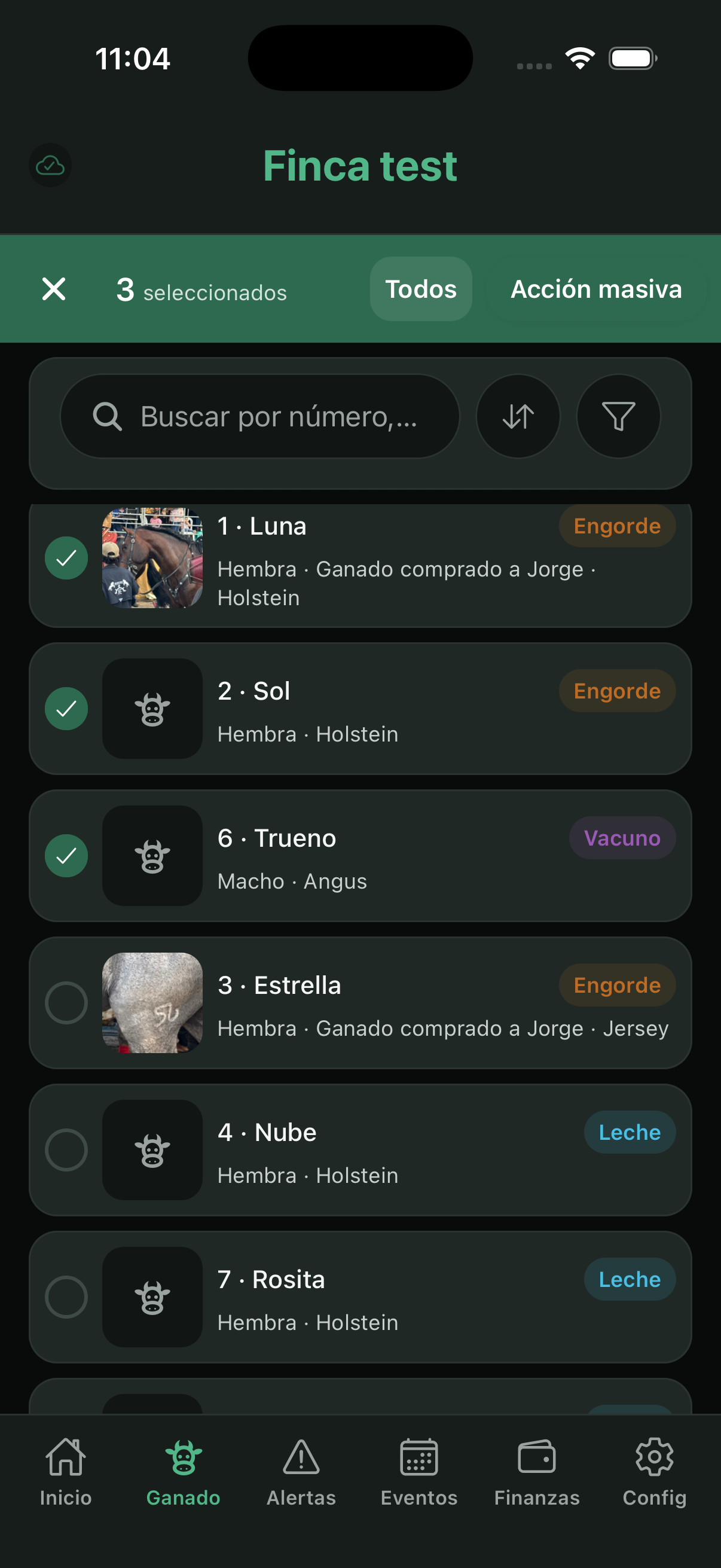
Long-press an animal to enter multi-select. With + you create a new animal. On the free plan, from animal 31 onward it may appear locked until you upgrade to Ranchy PRO.
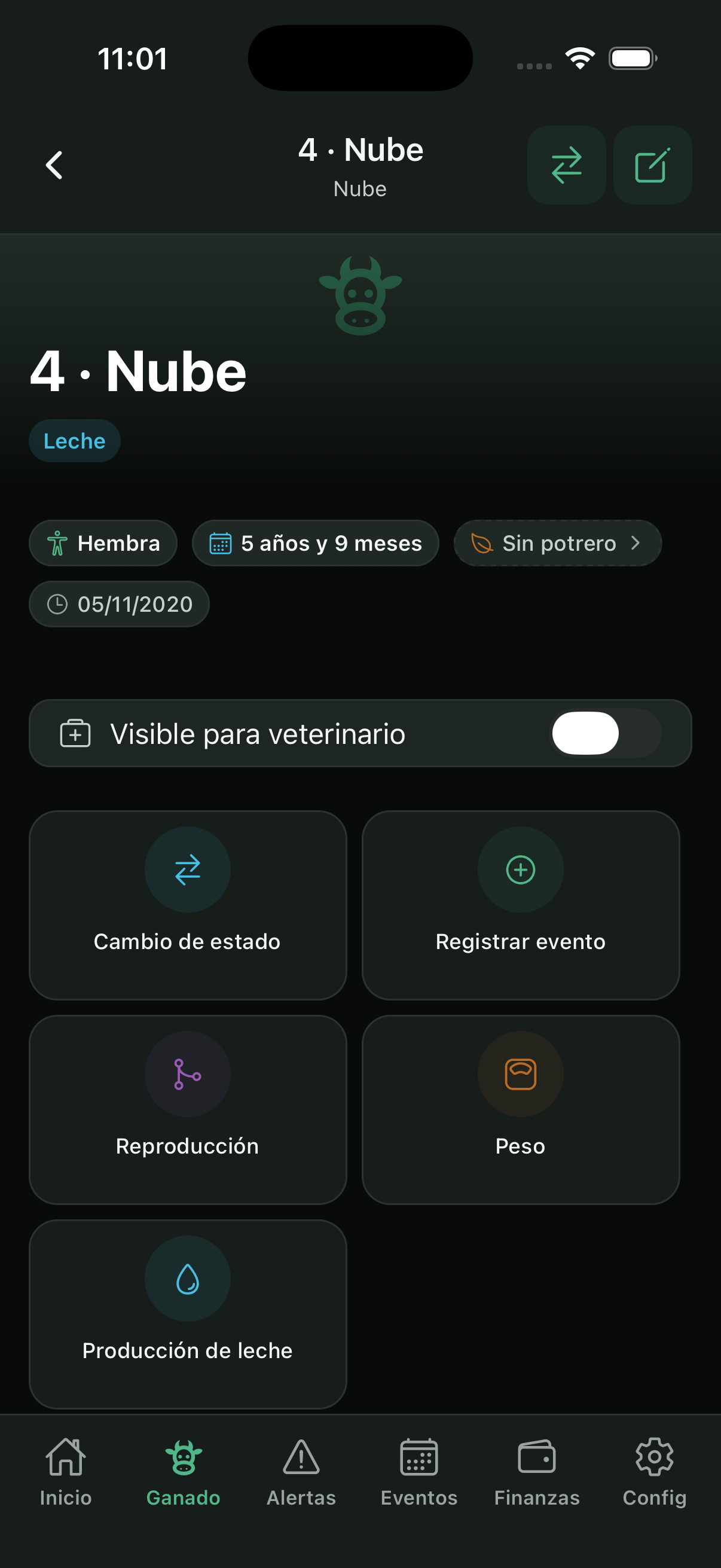
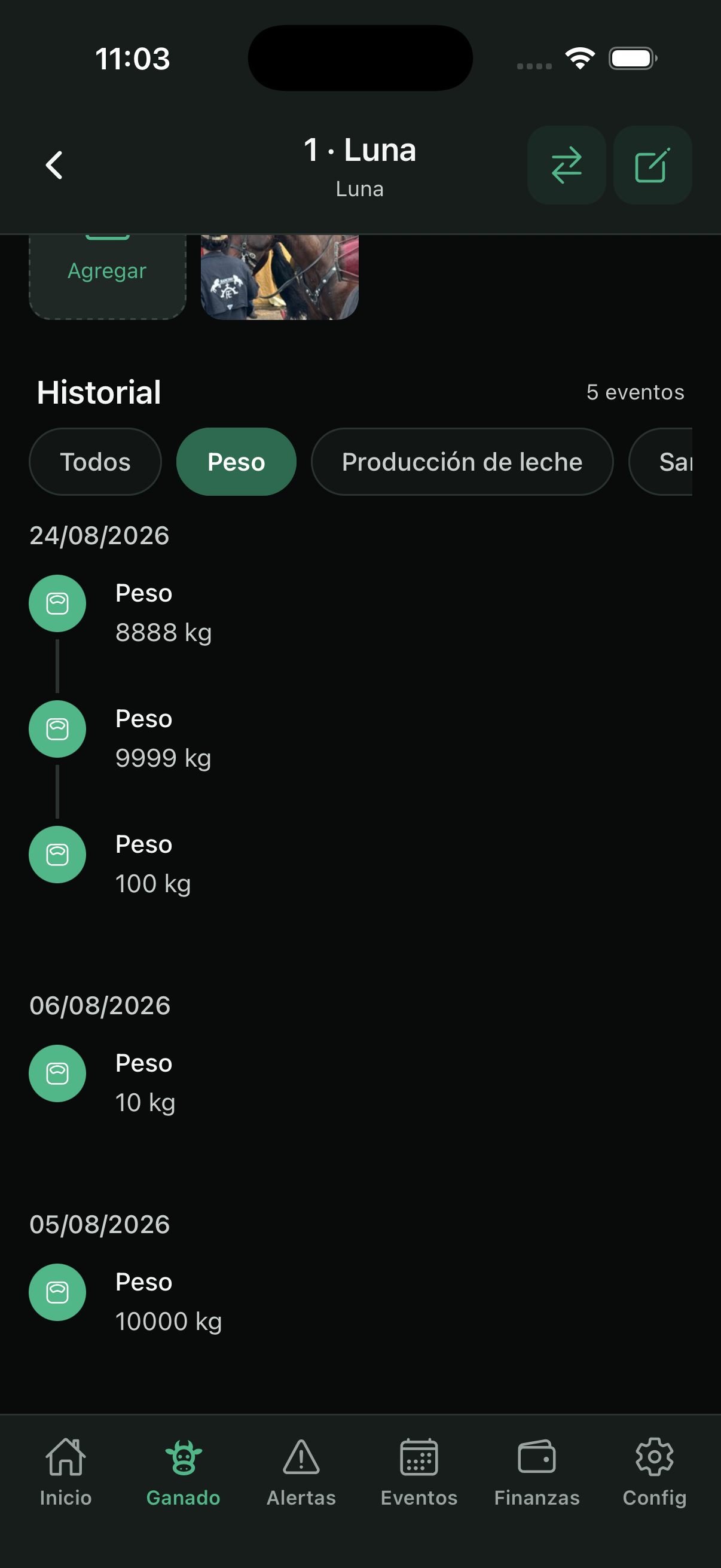
- Open an animal to see its record: photos, number, name, tag, pasture (with days), family, weight, milk, and history.
- The quick actions on the record (calving, reproduction, health, weight, status change…) are customized in Settings.
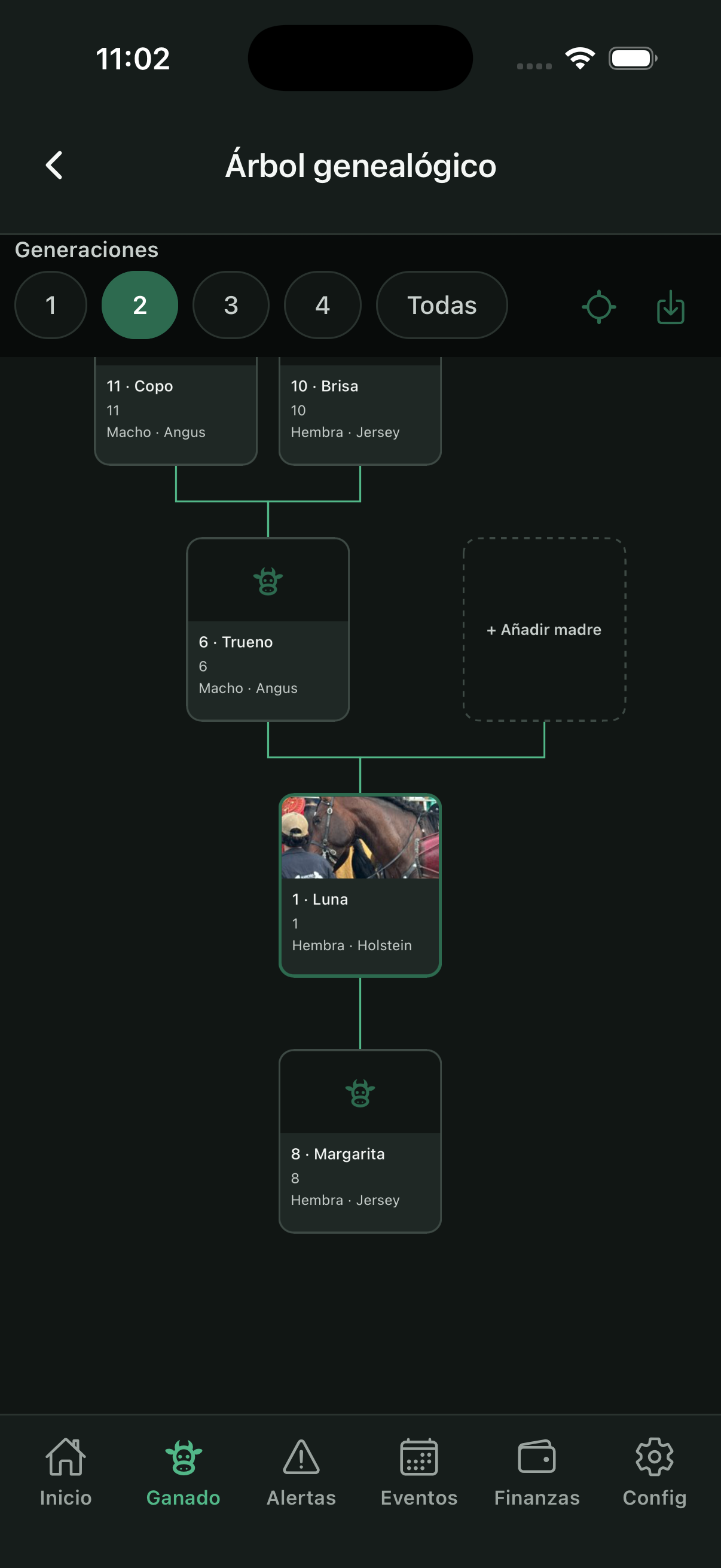
- From the record you can edit, change pasture, transfer to another farm, or export the pedigree tree as PDF.
4. Animal events
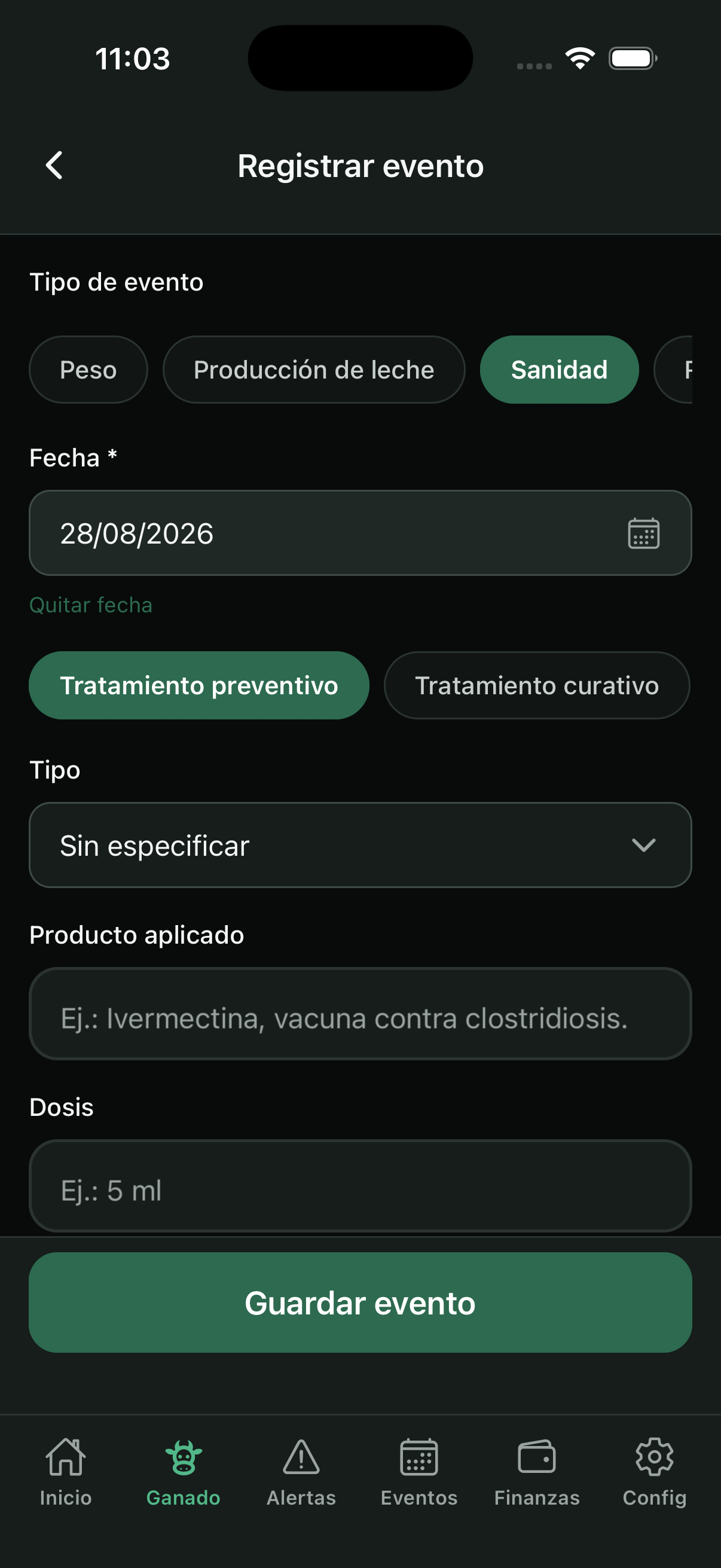
Animal events go into their history. They are recorded from quick actions, the Register event button, or a bulk action / campaign.
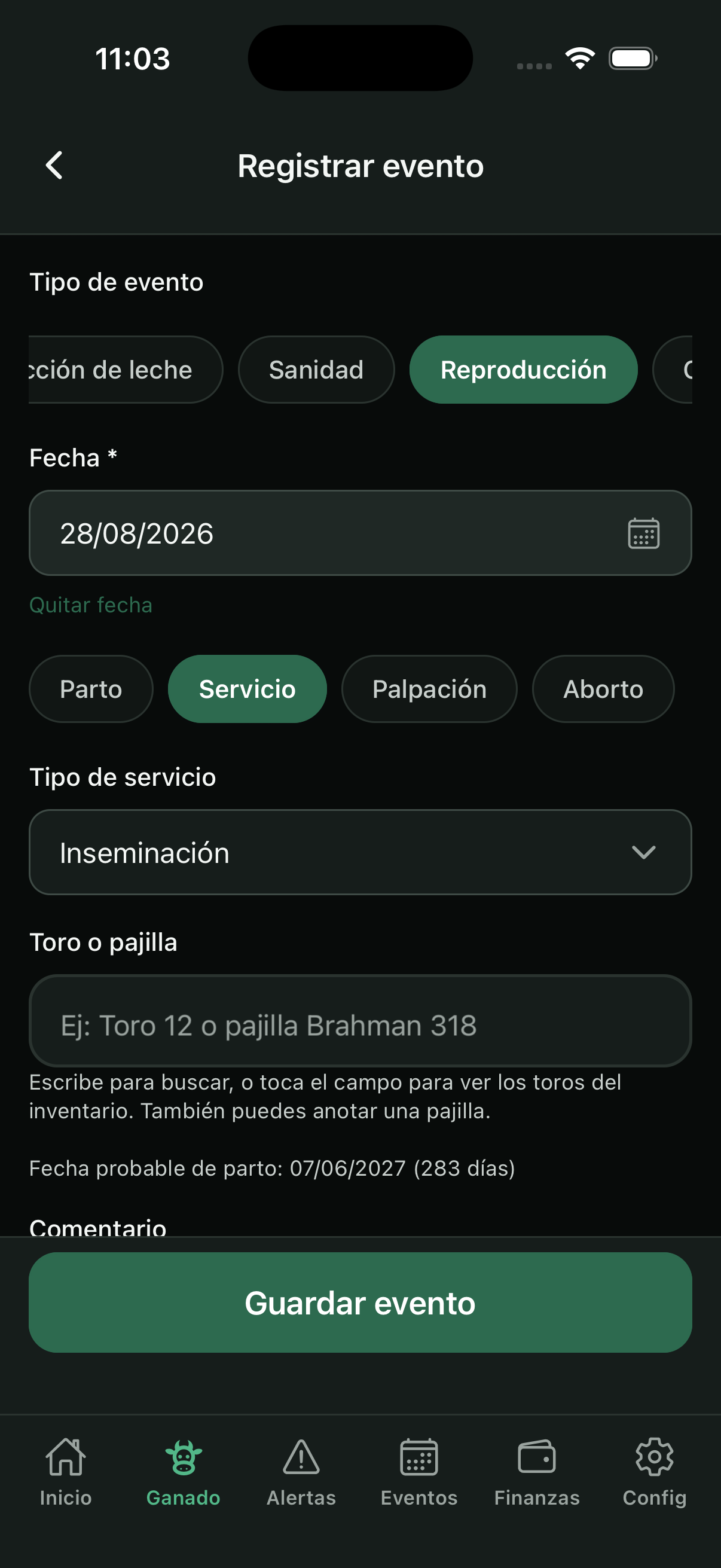
Main types: Weight, Milk production, Health (preventive or curative), Reproduction (calving, service, palpation, abortion), Marking, and Status change (including sale, death, or loss). You can also create your own event types per farm.
- Choose the event type and fill in only the fields you need.
- Save: the event appears in the history (you can filter by type).
- Tap a history event to see the details before editing it.
5. Bulk actions, inventory, and campaigns
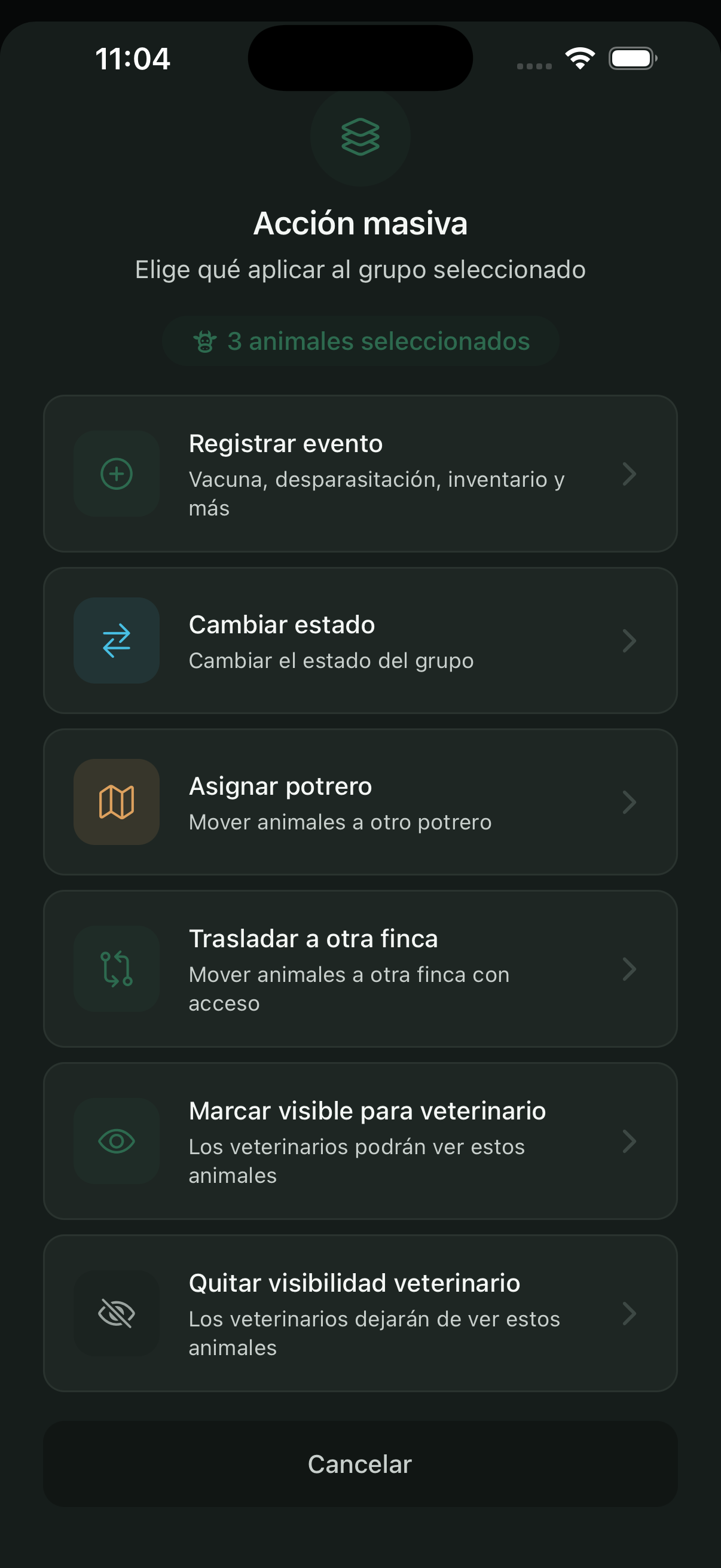
To work on several animals at once: multi-select (long-press) or ⋯ menu → Bulk actions. You can register an event, change status, assign pasture, transfer farms, or mark visibility for the veterinarian.
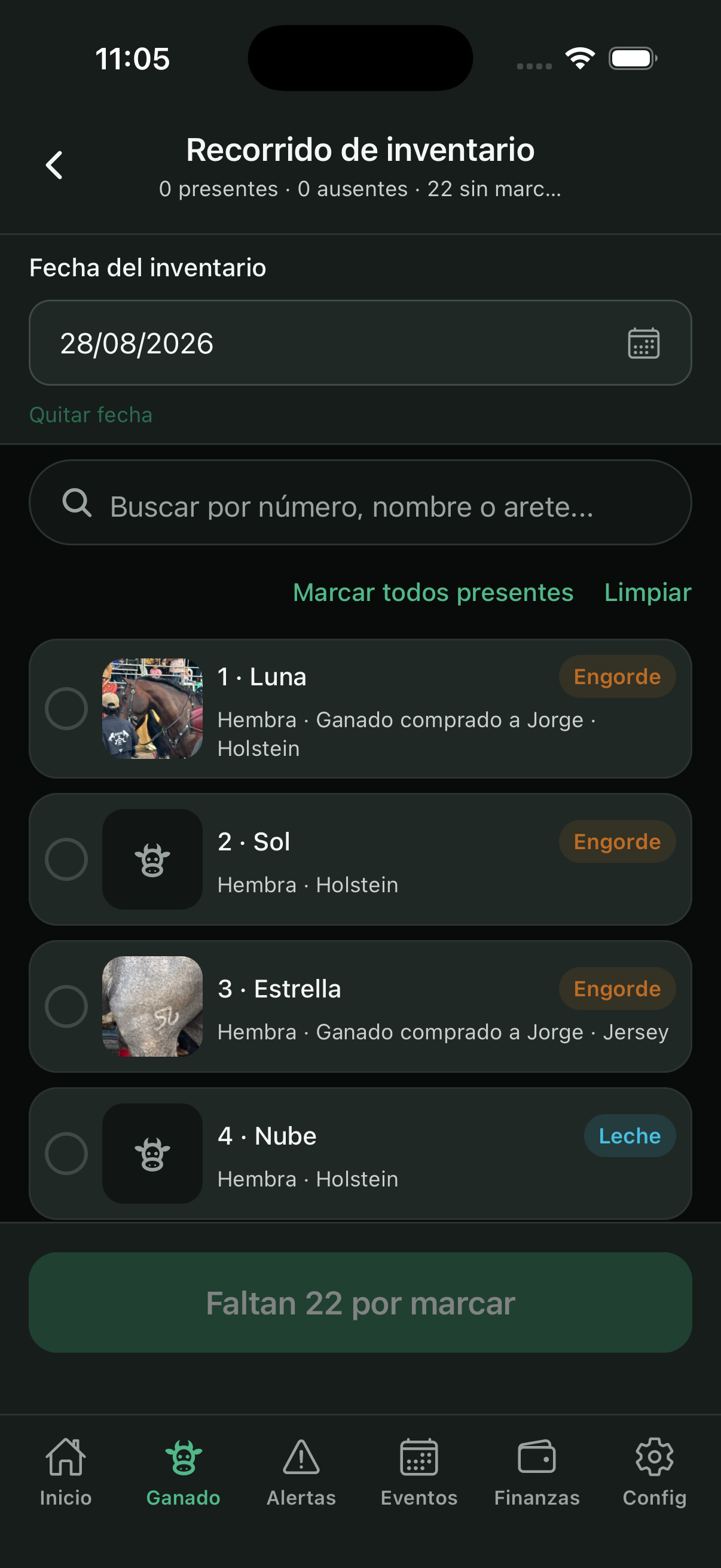
Inventory: a field walk marking Present / Absent. On save, events are created and absence alerts may be generated.
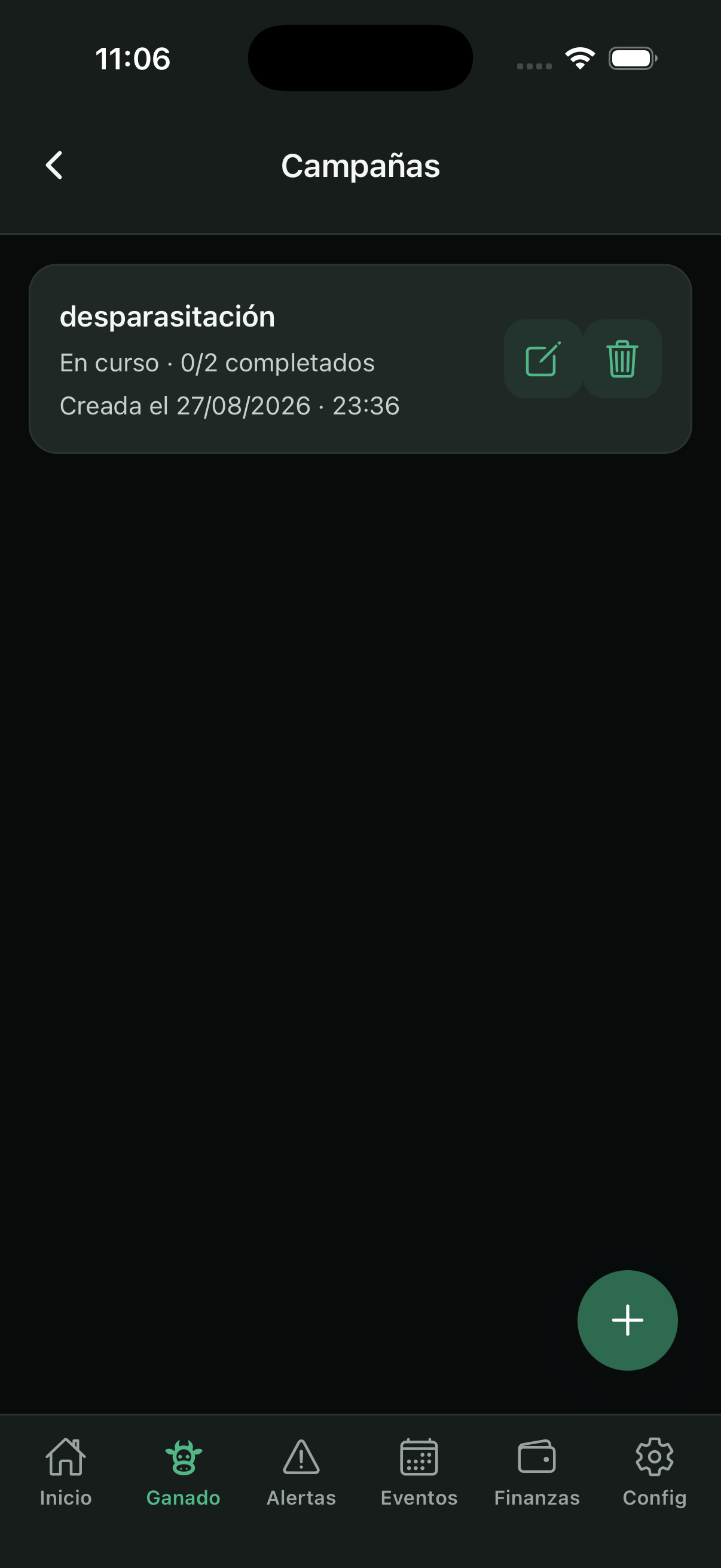
Campaigns: a named process (for example deworming), a list of animals, and an event type when marked done. You see who is still pending and when each one was completed.
6. Alerts and notifications
The Alerts tab lists ranch notices (absence in inventory, upcoming calvings, cattle without calving, status changes made by a worker, etc.). Tap an alert to go to the animal.
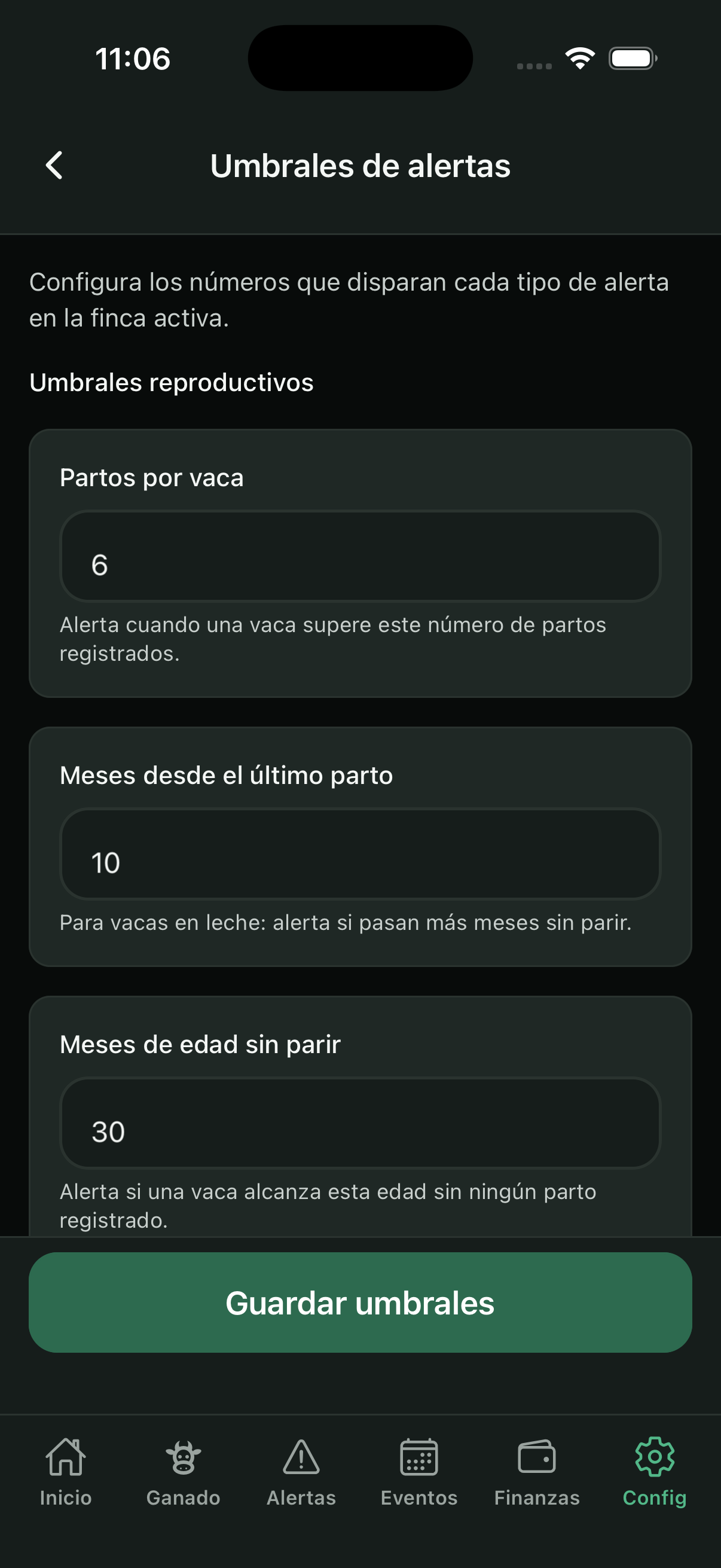
The owner sets thresholds in Settings → Alert thresholds (months without calving, days before expected calving, etc.). In Settings → Notifications you choose immediate alerts or a daily summary.

7. Farm events (calendar)
The Events tab is the ranch calendar (meeting, visit, work day…), separate from each animal’s history. You can create events with a title, date, and comment; they also appear on Home as upcoming events.

8. Farms and pastures
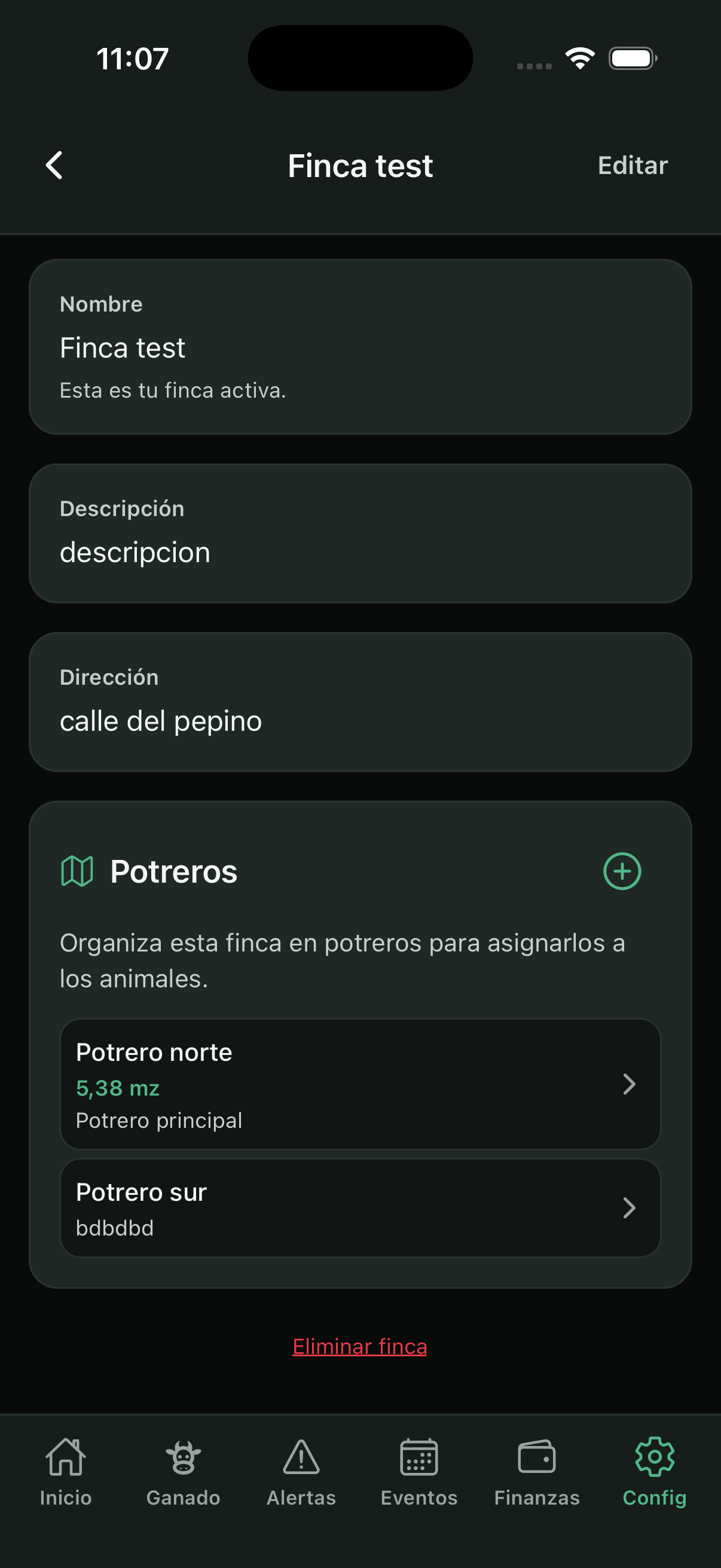
In Settings → Manage farms you create and edit farms. Within each farm you manage pastures: create, edit, and assign them to animals (also in bulk).
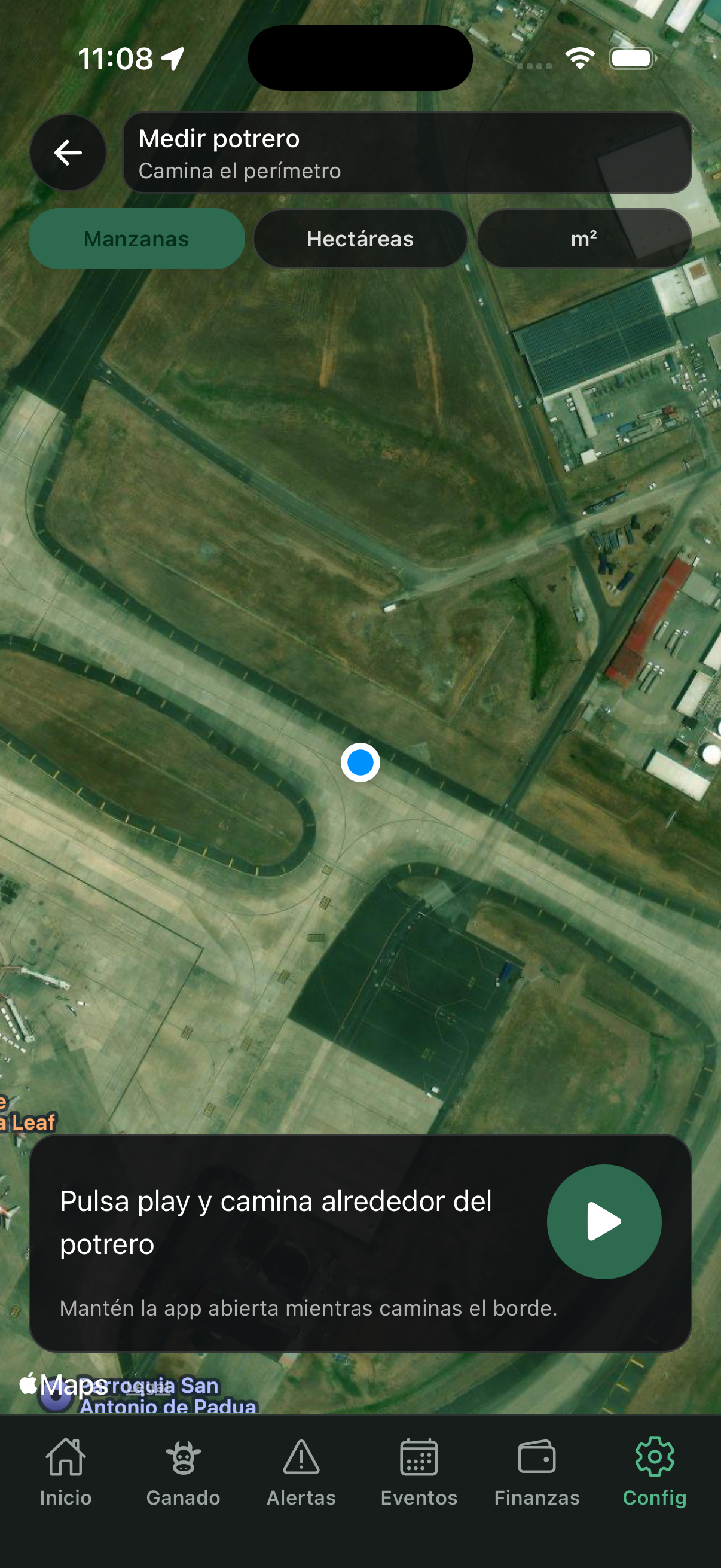
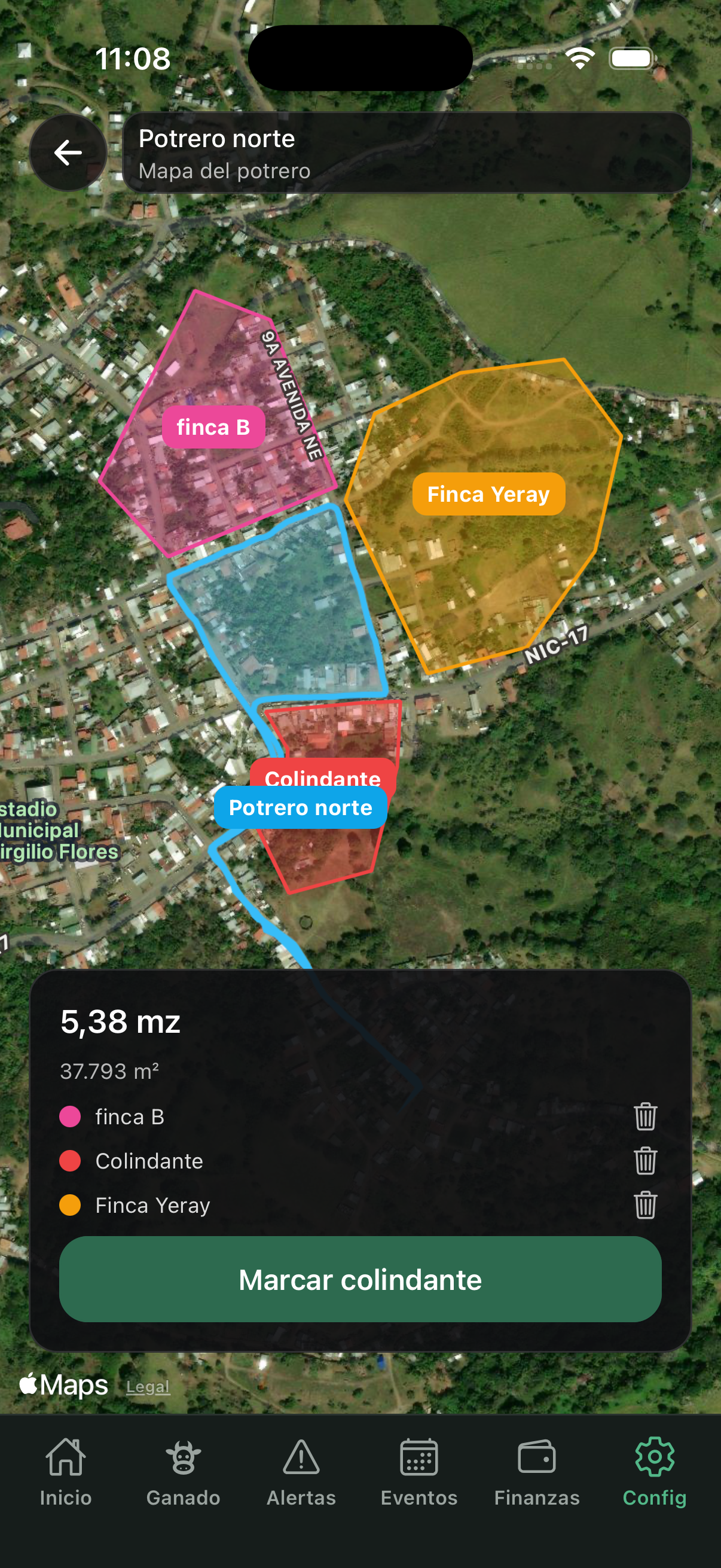
You can measure a pasture by walking with GPS, view the map (with neighbors), and export a PDF. The animal record shows the days in the current pasture.
9. Finances
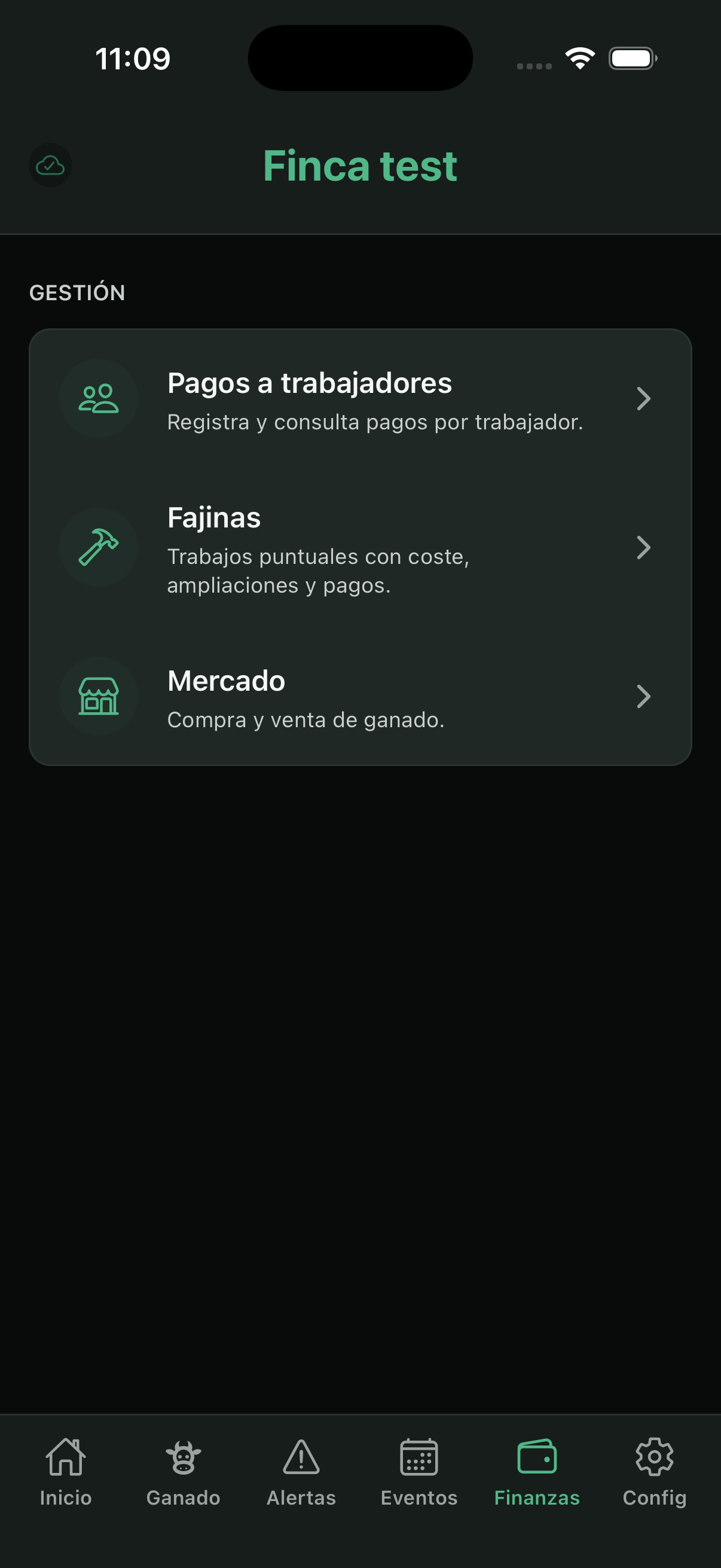
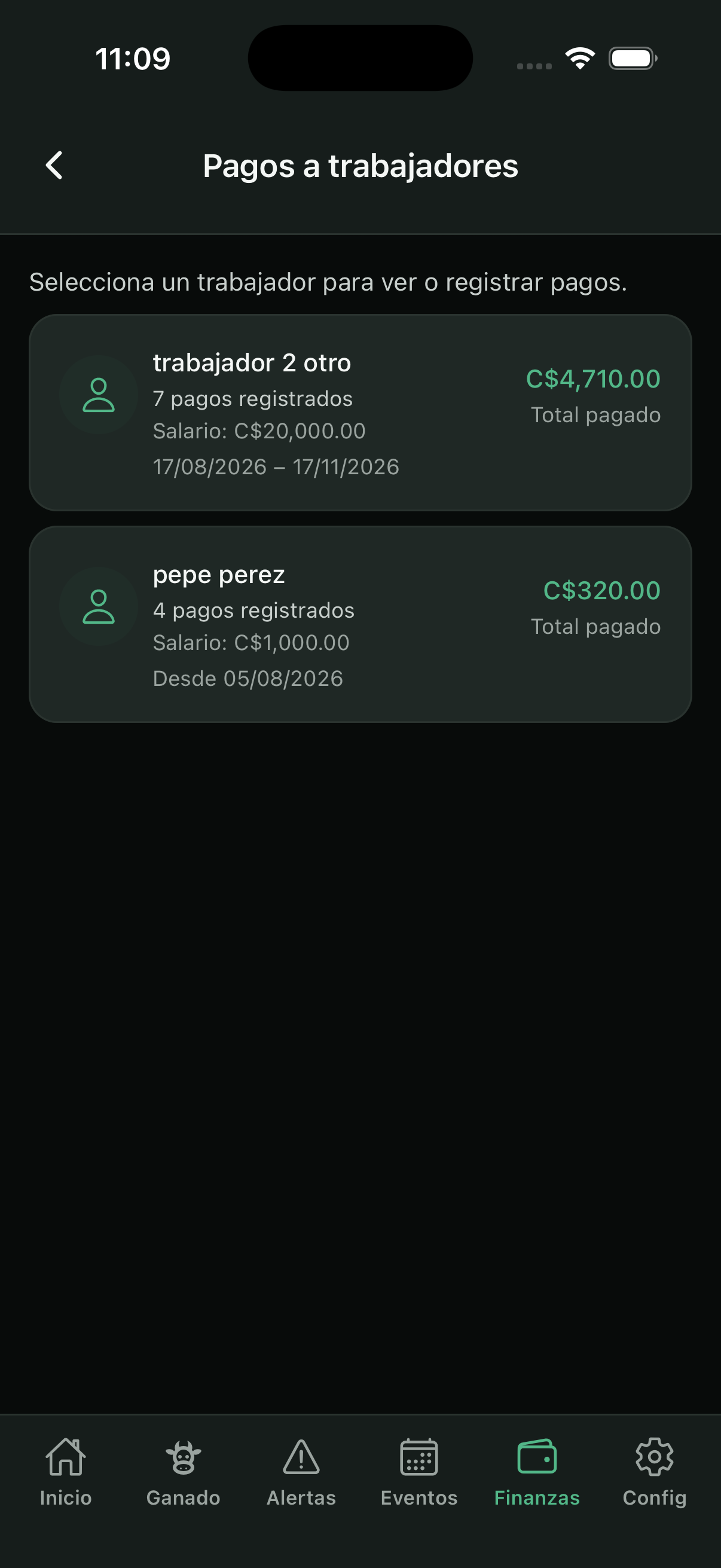
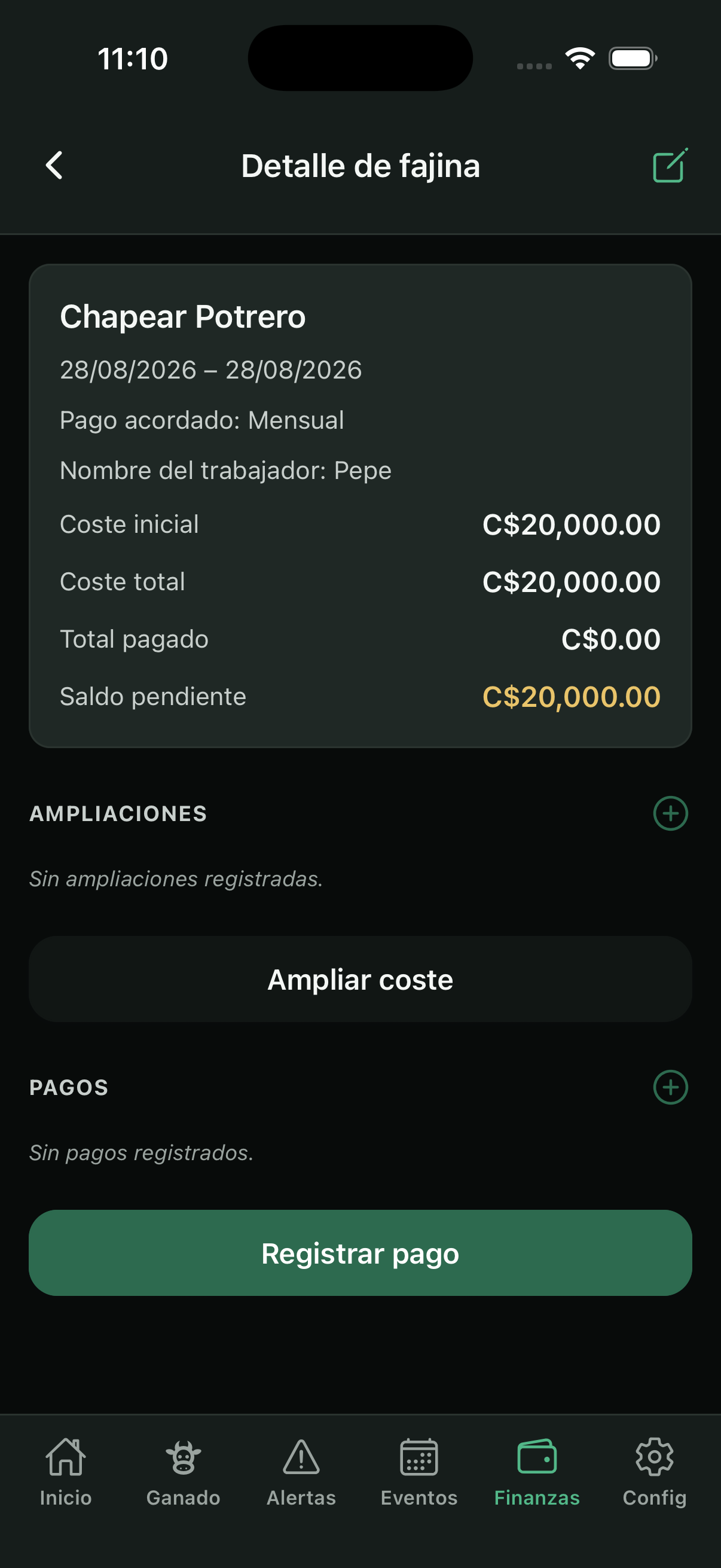
Finances is available to the owner (and secondary owner) and to workers with the View finances permission. It includes ranch income and expenses (cash book), workers on monthly salary or daily wage (day calendar, extras, and mark as paid), advances, discounts, and odd jobs (cost, extensions, and partial payments).
Currency is chosen in Settings → Currency.
10. Team and access
There are two distinct concepts:
Workers (Settings → Workers): payroll people (name, salary, dates). Used for finances.
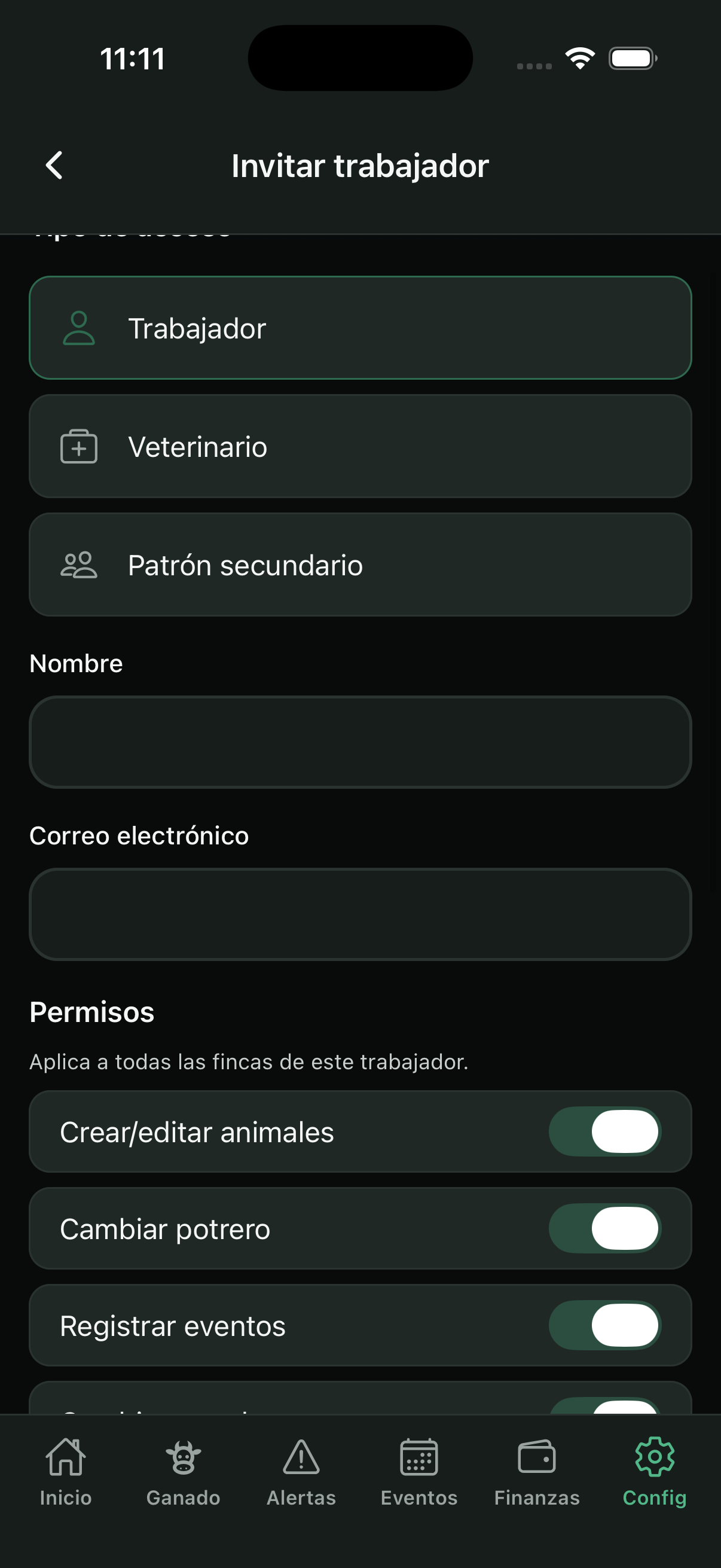
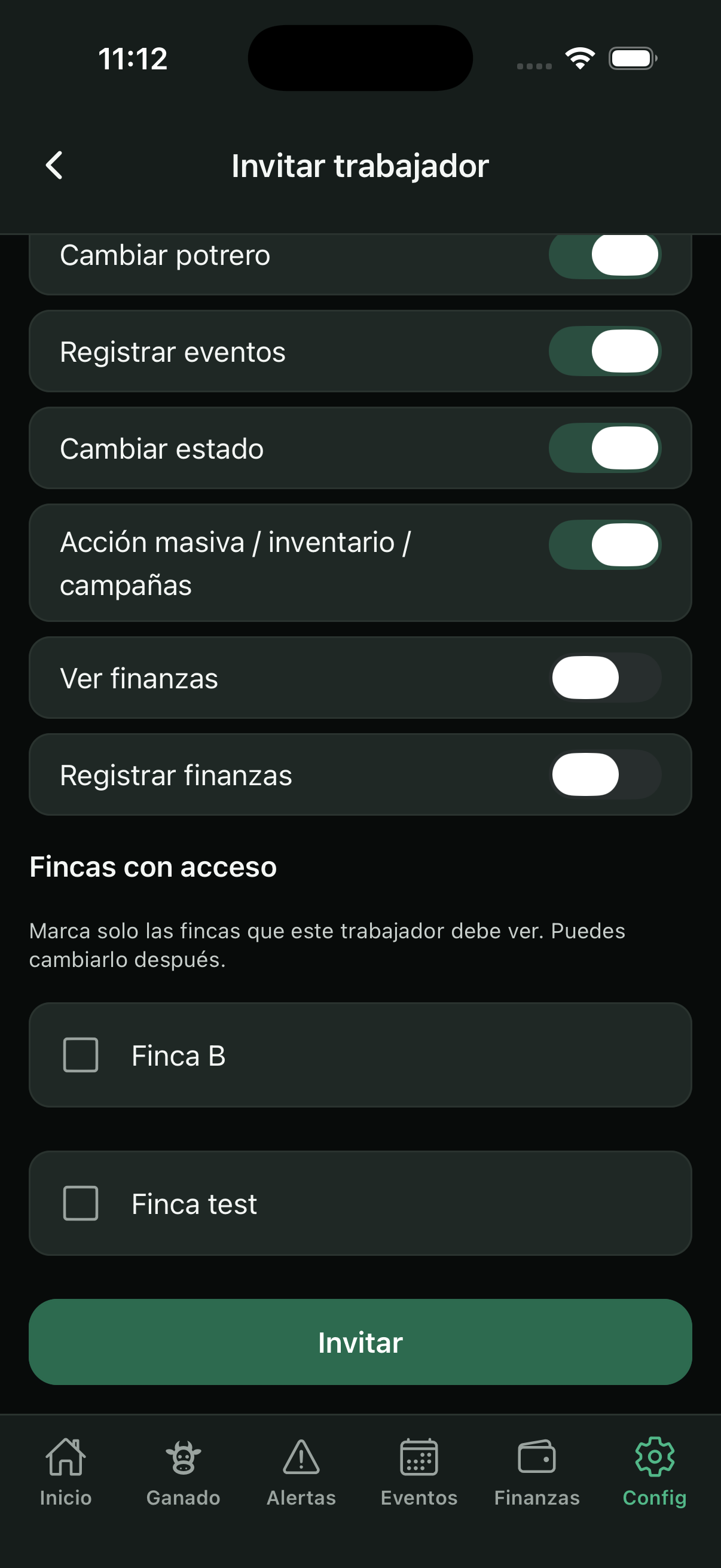
Access users (Settings → Users): accounts that sign in to the app. You can invite a worker, veterinarian, or secondary owner, assign farms, and for a worker enable or disable permissions:
Create/edit animals · Change pasture · Register events · Change status · Bulk action / inventory / campaigns · View finances · Register finances.
By default, the worker has field permissions on and finances off. The veterinarian only sees animals marked as “Visible to veterinarian.” The farm’s creating owner cannot be deleted.

11. Customization
In Settings you can change appearance (theme and font size), interface language, and, if you have finances, the currency.
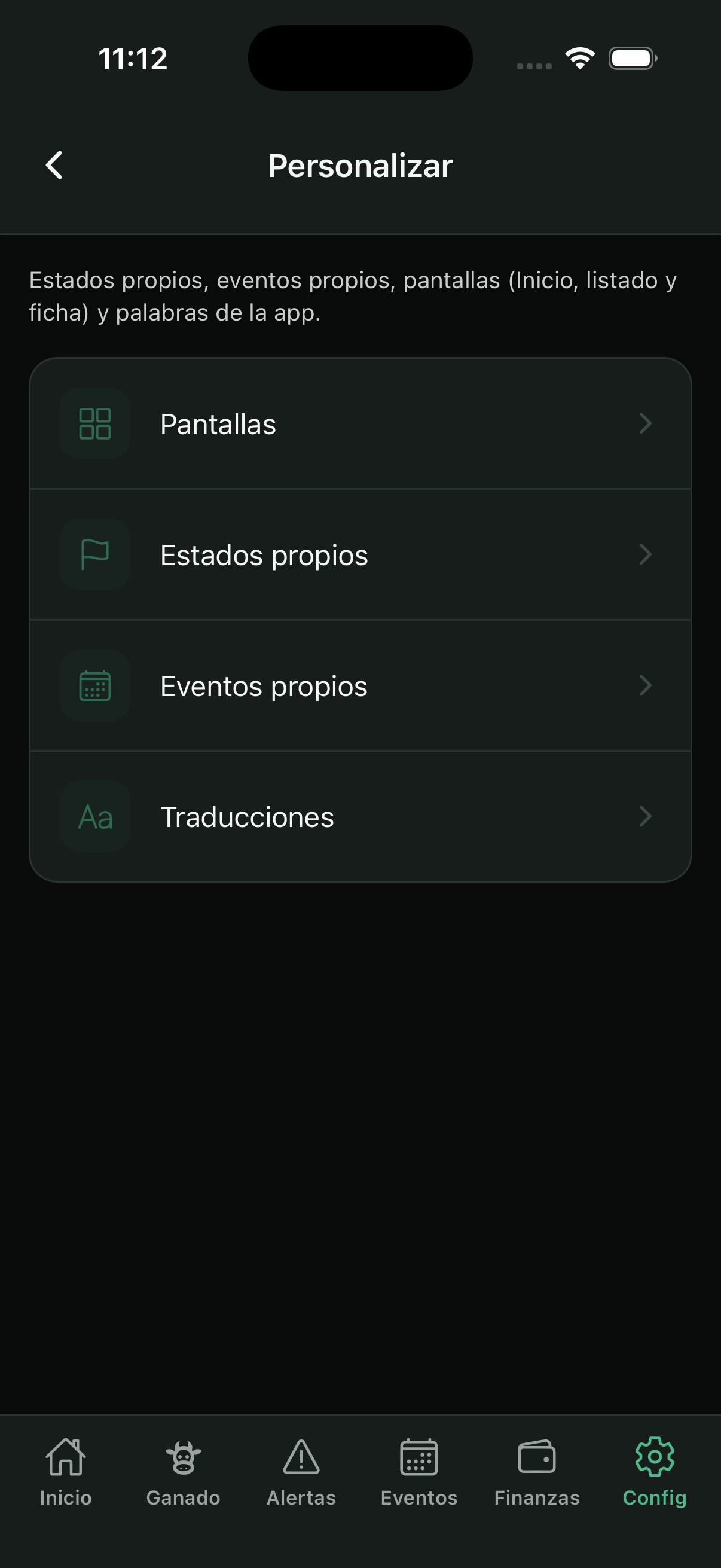
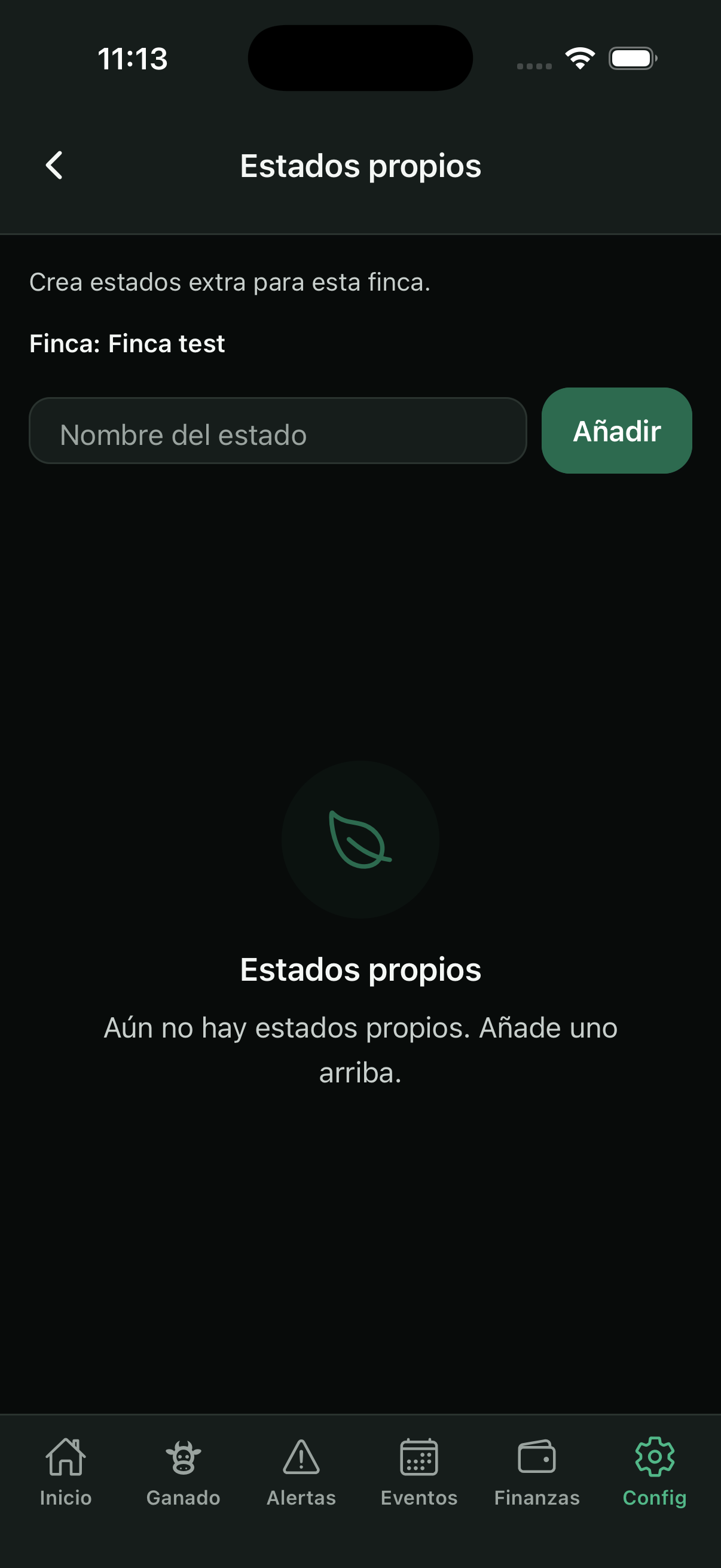
Customize lets you: rename terms (pasture, tag, brand, fajinas), create your own statuses and event types, choose record quick actions, and show or hide blocks on Home, the list, and the record.
12. Sync, CSV import, and plan
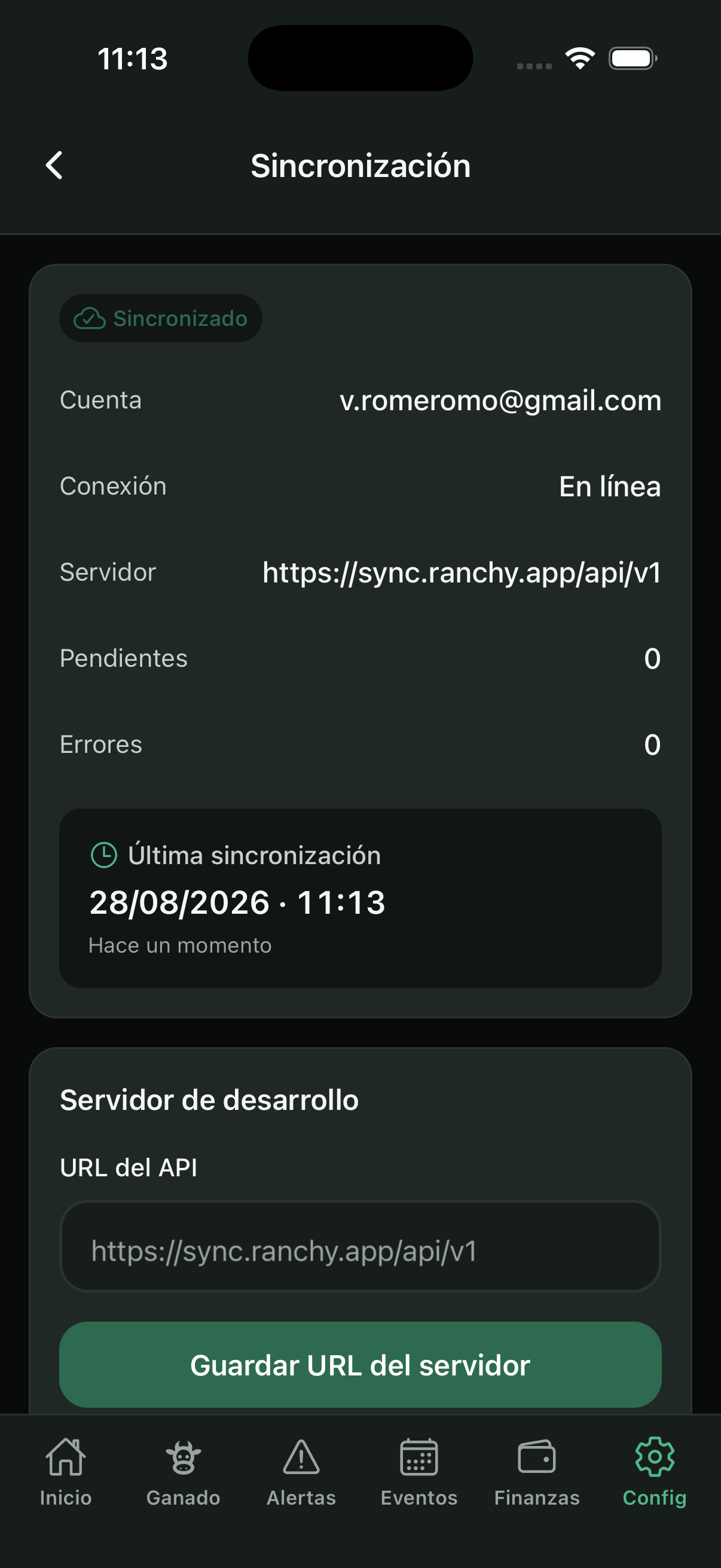
The indicator next to the farm name shows whether you are offline, syncing, or have pending changes. You can force “Sync now” and see details in Settings → Sync status.
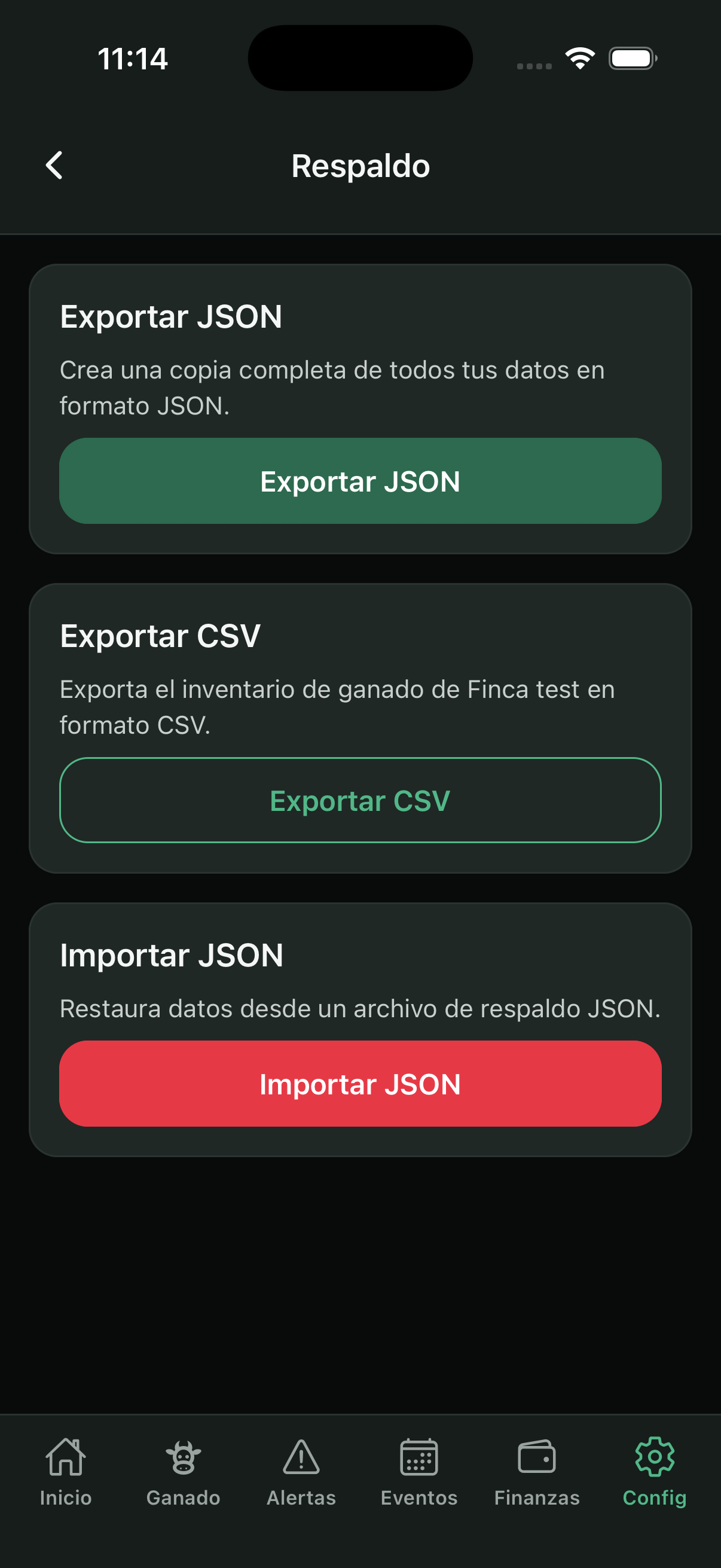
Import (Settings → Import): load a livestock CSV for the active ranch. Import on the phone or request a one-time link (24 h) emailed to your account to upload from a PC. The template matches the current app language; the parser accepts headers in Spanish, English, French, Portuguese, and Italian. Creates or updates animals by number/tag.
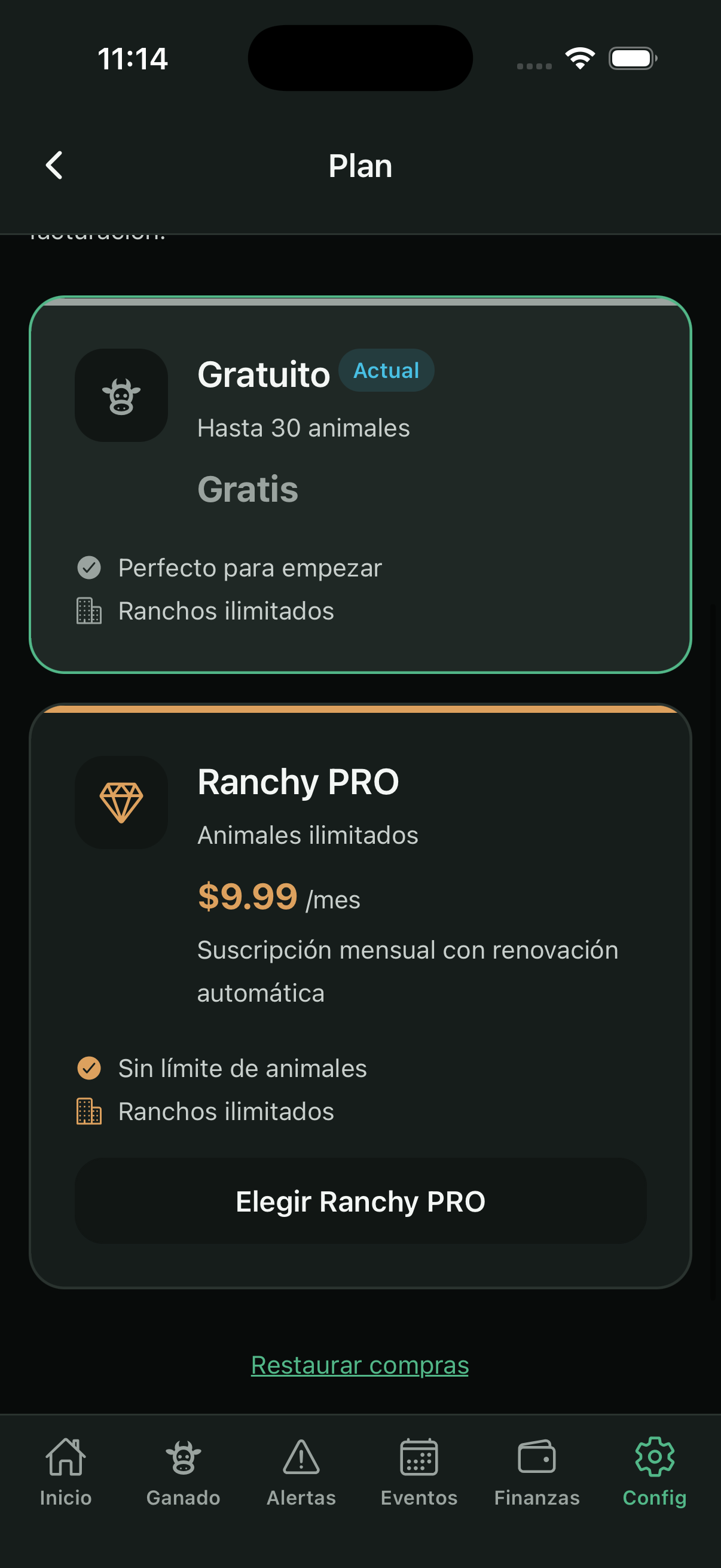
In Settings → Plan you see Free plan usage (up to 30 animals) and the Ranchy PRO option (unlimited animals, sync across devices, and team).
Frequently asked questions
I cannot sign in as a worker or veterinarian
The owner must invite you under Access users with the same email (Google/Apple/Facebook) you use to sign in, and assign you at least one farm.
My changes do not show up on another phone
Check that there is internet and tap the sync indicator or “Sync now.” Both devices must use the same account or be on the same farm team.
I do not see the Finances tab
Workers only see it if the owner enabled “View finances” in their permissions. Veterinarians do not have finances.
The veterinarian does not see any animals
On the record (or in a bulk action), mark “Visible to veterinarian” on the animals you want to share.
An animal appears locked
On the Free plan the limit is 30 animals. Upgrade to Ranchy PRO or delete animals you no longer use (according to deletion rules).
How do I load my inventory from Excel?
Go to Settings → Import. Download the template, fill it in, and upload on the phone — or request the email link to upload the CSV from a PC (valid 24 h, one-time use).
Does data get translated when I change the language?
No. Only the interface changes. Animal names, pastures, and notes stay as you wrote them.
Need more help?
Write to us at hola@ranchy.app